

Choose the Right Deployment Method
When setting up a customer service system on your SME website, the first step is to select an appropriate deployment method. Common options include SaaS cloud deployment and on-premises deployment. SaaS mode requires no server maintenance—just create an account and start using it, making it ideal for businesses with limited budgets and small technical teams. On-premises deployment offers higher data security but demands IT maintenance capabilities. Choose the solution that best fits your business needs, data sensitivity, and budget.
Register and Configure the System Backend
After selecting a vendor, log into the backend management interface. Complete the following basic configurations:
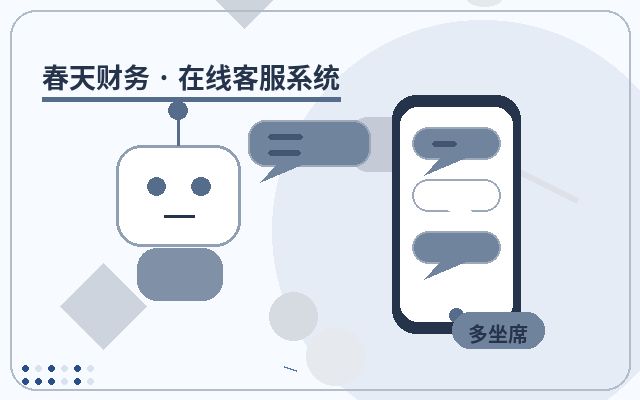
- Create customer service accounts: Add agents based on team size and assign role permissions (e.g., admin, regular agent, quality inspector).
- Set working hours: Configure online hours, and switch to message or chatbot mode during off-hours.
- Integrate channels: Embed the customer service system into your website, typically by copying JS code or installing a plugin, ensuring the chat entry appears on all pages.
Configure Auto-Replies and Chatbots
To boost response efficiency, SMEs can set up auto-replies for common questions or enable a chatbot. In the backend's "Auto-Reply" module, add welcome messages and trigger keywords for FAQs. A chatbot can automatically answer repetitive questions based on a knowledge base, significantly reducing the workload on human agents. Remember to update the knowledge base regularly to ensure accurate responses.
Set Up Tickets and Routing Rules
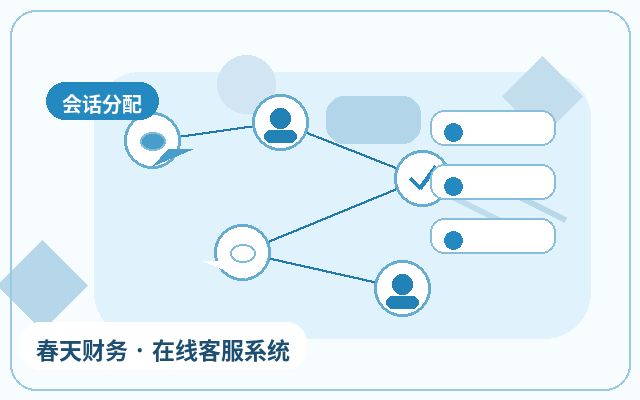
For complex issues requiring cross-department collaboration, enable the ticket system. Configure ticket categories (e.g., after-sales, technical, complaints), routing rules (auto-assign to relevant agent groups), and escalation mechanisms (auto-notify supervisors on timeout). This ensures every customer issue is tracked and resolved without oversight.
Integrate Third-Party Tools (Optional)
Some customer service systems support integration with CRM, ERP, or email systems. Based on your needs, consider linking customer data so agents can view order history or profiles during chats, improving service accuracy. However, proceed cautiously and consult your vendor's technical support for integration.
Test and Launch
Before going live, conduct thorough testing from a customer perspective: click the chat entry on various pages, test chat, message, and transfer-to-agent functions; verify auto-replies and chatbot accuracy; and check ticket routing as expected. Run a few simulation sessions with internal staff, fix any issues, then open to customers.
Frequently Asked Questions
Q: What if the customer service system doesn't show up after setup?
This is usually due to incorrect JS code installation or cache issues. Check that the code is placed inside the <head> tag on all pages, clear your browser cache, and revisit. If it still doesn't appear, contact your vendor's deployment support.
Q: Is there a character limit for auto-replies?
Limits vary by system, typically 200-500 characters. Keep replies concise; for detailed explanations, include a link or direct users to the help center.
Q: Can I customize ticket timeout durations?
Most systems allow setting different timeouts by ticket level, e.g., 24 hours for general inquiries and 2 hours for urgent issues. Adjust these in the ticket rules.

Ongoing Optimization Tips
After launch, regularly review backend data reports to understand peak inquiry hours, common issue types, and agent response times. Use these insights to refine the knowledge base, adjust agent schedules, or update auto-reply logic, continuously improving the customer service experience.